
How to Verify a Real 4K IPTV Stream: Resolution, Bitrate, Codec, FPS & HDR Explained
Check a 4K IPTV stream by its resolution, bitrate, codec, frame rate, HDR and stream metadata, and learn what those readings can and cannot prove.
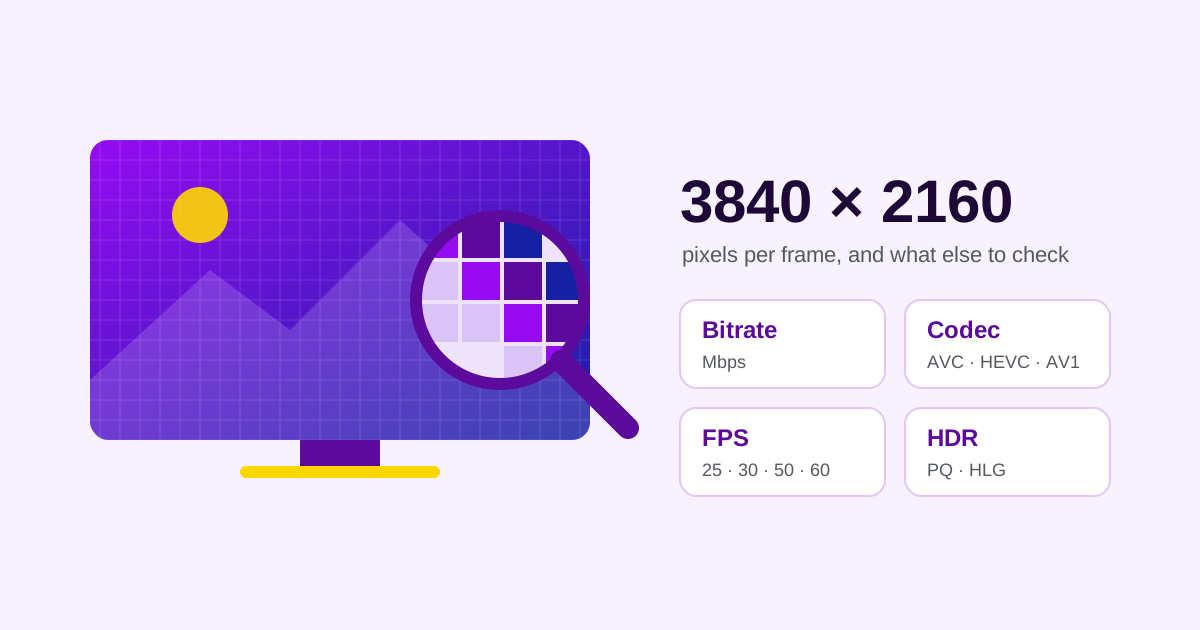
A “4K” label in a channel name is a claim, not a measurement. To check what a stream actually delivers, look at its resolution first, then its bitrate, codec, frame rate and HDR or colour properties. You can read them from the player's stream information, from the stream's HLS manifest where it has one, or by inspecting the video directly with a tool such as MediaInfo or ffprobe.
Even together, those readings describe the stream as it reaches you. They cannot conclusively prove that the programme was produced in native 4K: a 1080p source upscaled to 3840 × 2160 reports exactly the same resolution as a native one.
What Does “Real 4K IPTV” Actually Mean?
“Real 4K” can mean three different things, and each needs different evidence:
- A marketing label. The channel is named “4K”, “UHD” or “Ultra HD”. That is what the provider calls it, not a property of the video.
- Delivered 4K. The video you receive is encoded at 3840 × 2160. Inspection tools can confirm this, because it is what the frames contain.
- Native-source 4K. The programme was produced and mastered at 4K rather than upscaled from a lower resolution. Frame dimensions cannot show this; it needs evidence about the source.
The formats themselves are standardised. ITU-R BT.2020 defines ultra-high-definition television at 3840 × 2160 (and 7680 × 4320) with a 16:9 picture: the “4K” of televisions and streaming, often called UHD. Full HD, or 1080p, is 1920 × 1080, a quarter of the pixels. Digital cinema uses a slightly wider 4K container of 4096 × 2160, set out in the DCI Digital Cinema System Specification. The two are close but not the same format; for television, 4K means 3840 × 2160.
Quick Checklist: Is Your IPTV Stream Really 4K?
A claim
- Channel label“4K” or “UHD” in the channel name
Evidence: the delivered stream
- Player stream infoWhat the app reports it is decoding
- HLS manifestWhat the stream declares for each variant
- Direct inspectionWhat the video itself contains
Evidence: the source
- Source provenanceHow the programme was produced and mastered
- Check the player's reported resolution. It measures the frame size the app says it is decoding, and shows what this player is receiving now. It proves nothing about the source, and some apps report the screen or output size instead.
- Inspect the video properties directly. MediaInfo or ffprobe reads the width, height, codec, frame rate and colour data from the video itself, which confirms the delivered encoding. It cannot prove native 4K, because upscaled video reports the same dimensions.
- Review the bitrate and codec. They show how much data carries each second of video and how it is compressed: the encoder's budget. Neither proves quality on its own, since the same bitrate looks different with different codecs and content.
- Check the frame rate. It shows how many pictures arrive each second, and so how smoothly motion can be shown. It says nothing about resolution: 50 or 60 frames per second can be HD.
- Check the HDR and colour properties. The transfer function (SDR, PQ or HLG), colour primaries and bit depth show how brightness and colour are encoded. They do not show resolution or how the programme was made.
- Compare the HLS manifest, if there is one. It lists what the stream declares for each version it offers. It does not show which version is playing, or the video's exact bitrate.
- Separate delivered 4K from native 4K. Steps 1 to 6 can establish that the stream is delivered at 3840 × 2160. Native-source 4K needs evidence about the source from whoever produced the programme.
Resolution: Is 3840 × 2160 Enough?
Resolution is the frame size the video is encoded at: 3840 pixels across and 2160 down for UHD. Inspection tools read it from the stream, so it is reliable evidence of what was delivered. It says nothing about how those pixels were filled.
Upscaling creates a larger frame from a smaller one by calculating the extra pixels. Take a fictional example: a programme produced at 1920 × 1080 is upscaled to 3840 × 2160 and encoded for a 4K channel. Every tool now reports 3840 × 2160, because that is the frame size, but the picture holds no more real detail than the 1080p source. Re-encoding adds another layer: each time video is compressed again, more fine detail can be lost, whatever the frame size.
Conceptual illustration, not real footage
Native 4K source
- Produced at 3840 × 2160
- Encoded at 3840 × 2160
Fine detail can reach single-pixel scale.
1080p source, upscaled
- Produced at 1920 × 1080
- Upscaled to 3840 × 2160
- Encoded at 3840 × 2160
Four times the pixels, but no detail the source did not have.
Both report
3840 × 2160
Production standards point the other way. ITU-R BT.2100 notes that producing at a higher resolution and down-sampling for distribution gives better quality than producing at the distribution resolution. Down-sampling 4K to 1080p keeps real detail; upscaling 1080p to 4K can only estimate detail that was never captured.
Two other resolutions are easily confused with the stream's: the output resolution your device sends to the TV, and the TV panel's own resolution. A 4K TV shows everything at 3840 × 2160, so a 4K screen proves nothing about the video, as the section on TV output below explains.
Bitrate: Why More Mbps Does Not Always Mean Better Quality
Bitrate is the amount of data used per second of video, usually given in megabits per second (Mbps). Compression decides how that budget is spent, so the same bitrate can look very different depending on:
- The codec. HEVC, as its full name, High Efficiency Video Coding, suggests, was designed to compress more efficiently than H.264, but the gain depends on the encoder and the content.
- The frame rate. At 50 frames per second, the budget is spread over twice as many pictures as at 25.
- The content. Grass, water, crowds and confetti are much harder to compress than a studio interview.
- The encoder and its settings. Two encoders can produce different quality at the same bitrate.
Bitrate can also be constant (CBR) or variable (VBR), which MediaInfo reports as BitRate_Mode. With a variable bitrate, a single reading is an average or a snapshot. Live streams often report no video bitrate at all, or only an overall figure for the whole stream, including audio.
There is no bitrate that proves native 4K. Apple's HLS authoring specification shows the range: its example HEVC ladder for 30 fps lists 3840 × 2160 variants at 11.6 and 16.8 Mbps for SDR, and at 13.9 and 20 Mbps for HDR, and it recommends that some UHD variants stay at or below 15 Mbps for compatibility. A higher bitrate gives the encoder more room, which usually helps difficult scenes, but an upscaled source at a high bitrate is still upscaled.
A high bitrate also needs a connection that can carry it. If the picture is sharp but keeps stopping, the problem is delivery, not resolution: find where the buffering starts.
Codec: H.264 vs H.265/HEVC vs AV1
A codec is the method used to compress video and to decompress it for playback. It is separate from the container that carries it, such as an MPEG-2 transport stream or fragmented MP4, and from the protocol that delivers it, such as HLS.
| Codec | Also called | What to know |
|---|---|---|
| H.264 | AVC, ITU-T H.264 | The oldest of the three and the most widely supported by playback devices |
| H.265 | HEVC, ITU-T H.265 | Designed for more efficient compression; used for UHD and HDR in Apple's example ladder. The device needs an HEVC decoder |
| AV1 | AOMedia Video 1 | The newest of the three; the device needs AV1 decoding, which older devices may lack |
Three cautions. HEVC does not mean 4K: Apple's example playlist also uses HEVC for a 1280 × 720 variant. AV1 does not guarantee a better picture, because visible quality depends on the encoder, the bitrate and the source as much as on the codec. And the codec is not chosen by how you connect: an M3U playlist and an Xtream login can lead to the same encoded stream.
Codec support matters on the device side too. A device that cannot decode a codec at 4K may stutter or fail to play it, so check codec support alongside resolution.
FPS: Why 25, 30, 50 and 60 FPS Matter
Frame rate is the number of pictures shown per second. It is separate from resolution: a 3840 × 2160 stream can run at 25 frames per second, and a 1920 × 1080 stream at 50 or 60.
Higher frame rates show motion more smoothly, which matters most for sport and other fast action. At 25 or 30 frames per second, a fast pan or a moving ball is captured in fewer, more widely spaced pictures than at 50 or 60.
The common families come from television history: 25 and 50 in regions with 50 Hz mains power, 30 and 60 (or 29.97 and 59.94) in regions with 60 Hz. ITU-R BT.2020 lists frame rates from 24 to 120 per second and notes that the choice may be influenced by the mains frequency and the lighting in use.
There is no single frame rate that every sports channel must use, and 60 frames per second says nothing about whether the picture is 4K. Tools may show the rate as a fraction: ffprobe's avg_frame_rate reports 29.97 as 30000/1001.
HDR: HDR10, PQ and HLG Explained
Dynamic range is the span between the darkest and brightest parts of the picture. Standard dynamic range (SDR) television formats were limited by the characteristics of older displays. High dynamic range (HDR) television, specified in ITU-R BT.2100, is made to look correct on brighter displays, with much brighter highlights, more detail in dark areas and a wider range of colour.
BT.2100 specifies two ways to encode HDR:
- PQ (Perceptual Quantization) covers a very wide range of brightness levels for a given bit depth, using a curve tuned to human vision. HDR10, a widely used format, is based on PQ and carries static metadata about the mastering display and the content's brightness.
- HLG (Hybrid Log-Gamma) offers a degree of compatibility with older displays by more closely matching earlier television transfer curves.
What HDR metadata does and does not show
Inspection tools report the transfer function: ffprobe shows color_transfer as smpte2084 for PQ and arib-std-b67 for HLG, and MediaInfo reports transfer_characteristics and, where present, HDR_Format, MaxCLL and MaxFALL. Read them with four cautions:
- 10-bit is not HDR. BT.2100 HDR uses 10 or 12 bits per sample, but so does BT.2020, which is SDR. Bit depth shows precision, not range.
- BT.2020 colour primaries are not HDR. BT.2020 is itself an SDR standard with wide-gamut primaries, so a stream can be BT.2020 and SDR.
- HDR is not 4K. BT.2100 includes 1920 × 1080, and Apple's example playlist has an HLG variant at 1280 × 720. A stream can be 4K and SDR, or HDR at a lower resolution.
- HDR metadata is not provenance. It shows how the delivered signal is encoded, not how the programme was shot or whether it was upscaled.
How to Check IPTV Stream Information
Use only streams and recordings you are authorised to access, and treat any address that contains your login details as private.
Method A: the player's stream information
Many players can show details of the stream they are playing, such as its resolution, codec, frame rate or the decoder in use. Whether your app has such a screen, where it is and what it shows depend on the app and its version, so this article gives no menu paths; check the app's own help pages. Our comparison of IPTV players links to each developer's documentation. Make sure the figure is the video's resolution, not the screen or output size.
Method B: MediaInfo on an authorised sample
MediaInfo reads a video file and lists its properties. For a recording or sample you are allowed to keep, the useful video fields are:
- Width and Height: the frame size.
- Format and Format_Profile: the codec and its profile, such as HEVC with the Main 10 profile.
- BitRate, BitRate_Mode and BitRate_Maximum: the average bitrate, whether it is constant or variable, and the peak, when the file records them.
- FrameRate and FrameRate_Mode: frames per second, and whether the rate is constant or variable.
- BitDepth and ChromaSubsampling: the bits per sample and how colour is sampled.
- colour_primaries, transfer_characteristics and matrix_coefficients: how colour and brightness are encoded.
- HDR_Format, MasteringDisplay_ColorPrimaries, MaxCLL and MaxFALL: HDR metadata, when present.
Method C: ffprobe
ffprobe, part of FFmpeg, inspects a file or a stream address from the command line. This command prints the first video stream's key properties as JSON. Replace the last value, keeping the quotes, with your file name or an address you are authorised to use:
ffprobe -v error -select_streams v:0 -show_entries stream=codec_name,profile,width,height,avg_frame_rate,bit_rate,pix_fmt,color_primaries,color_transfer,color_space -of json "INPUT_FILE_OR_AUTHORISED_URL"- The options: -v error hides everything except errors, -select_streams v:0 picks the first video stream, -show_entries chooses the fields and -of json formats the result.
- codec_name and profile: the codec, such as hevc, and its profile.
- width and height: the encoded frame size.
- avg_frame_rate: frames per second as a fraction, such as 50/1.
- bit_rate: the video stream's bitrate in bits per second, often missing for live streams.
- pix_fmt: the pixel format, which shows bit depth and colour sampling; yuv420p10le, for example, is 10-bit 4:2:0.
- color_primaries, color_transfer and color_space: values such as bt2020, smpte2084 (PQ) or arib-std-b67 (HLG).
Live readings are a snapshot: bitrate may be missing or change from moment to moment. A live address may contain your login, so never paste it into online tools or share the output unedited. And none of these fields can show whether the source was produced in native 4K.
What an HLS Manifest Can Tell You
Many streams are delivered with HLS. Its top-level playlist, a multivariant (or master) playlist, lists the versions of the stream that the player can choose between, and RFC 8216 defines what each one declares:
#EXTM3U#EXT-X-STREAM-INF:BANDWIDTH=18000000,AVERAGE-BANDWIDTH=14000000,CODECS="hvc1.2.4.L153.B0,mp4a.40.2",RESOLUTION=3840x2160,FRAME-RATE=50.000,VIDEO-RANGE=PQuhd/index.m3u8#EXT-X-STREAM-INF:BANDWIDTH=7000000,AVERAGE-BANDWIDTH=5000000,CODECS="avc1.640028,mp4a.40.2",RESOLUTION=1920x1080,FRAME-RATE=50.000,VIDEO-RANGE=SDRhd/index.m3u8- RESOLUTION is “the optimal pixel resolution at which to display” the variant's video: a declaration, not a measurement of the frames.
- BANDWIDTH is the variant's peak segment bitrate, in bits per second. Apple's specification makes it the largest sum across the renditions played together, so it includes audio and is not the video's bitrate at any given moment.
- AVERAGE-BANDWIDTH is the variant's average segment bitrate.
- CODECS lists the formats present: here HEVC Main 10 (hvc1.2…) with AAC audio (mp4a.40.2) in the first variant, and H.264 (avc1…) in the second.
- FRAME-RATE is the maximum frame rate, rounded to three decimal places.
- VIDEO-RANGE is SDR, PQ or HLG. It is not part of RFC 8216; Apple's authoring specification requires it unless every variant is SDR.
Two limits apply. The playlist lists what is available, and the player switches between variants as conditions change, so it does not tell you which one is playing now. And every value is declared by whoever packaged the stream; only direct inspection reads the video itself. Not every IPTV stream uses HLS either: some are delivered as a continuous transport stream, with no manifest to read.
Why Your TV Can Show 2160p While the Stream Is 1080p
A streaming device sends the TV a picture at its own output resolution, set in its display settings, whatever the video is. A box set to 2160p upscales a 1080p stream before it leaves the HDMI port, so the TV's information banner reports a 2160p signal. That describes the connection between the box and the TV, not the stream.
The same applies to an app on a smart TV: the panel is 3840 × 2160, so everything is shown at that size. To learn the stream's resolution, use the player's stream information or the tools above, not the TV's input information.
Can You Prove a Stream Was Originally Produced in Native 4K?
Not conclusively from stream metadata alone. Width, height, bitrate, codec, frame rate and HDR flags all describe the encoded stream. An upscaled source, once encoded at 3840 × 2160, carries the same metadata as a native one, and every later re-encode mixes the source's detail with new compression artefacts.
Better evidence comes from outside the stream: the producer's or broadcaster's own statement of the production and mastering format, technical specifications published for the programme, or a version known to be native 4K to compare against.
Visual analysis can add clues. Fine textures, small text and distant faces hold more real detail in native 4K, while upscaled video tends to look soft, or artificially sharpened, at single-pixel scale; paused frames viewed up close show this best. But compression, noise reduction and sharpening affect native video too, so what you see is an indication, not proof. Software that estimates whether video was upscaled can add a further clue, but its result is an estimate as well.
What Each Check Can and Cannot Prove
| Metric | What it tells you | What it does not prove | How to check it |
|---|---|---|---|
| Channel name | What the provider calls the channel | Any technical property | The channel list |
| Resolution | The encoded frame size, such as 3840 × 2160 | That the source was native 4K | Player stream information; MediaInfo Width and Height; ffprobe width and height |
| Bitrate | The data budget per second | Picture quality, or native 4K | MediaInfo BitRate; ffprobe bit_rate; HLS AVERAGE-BANDWIDTH |
| Codec | How the video is compressed | Resolution or quality | MediaInfo Format; ffprobe codec_name; HLS CODECS |
| Frame rate | How many pictures arrive per second | Resolution | MediaInfo FrameRate; ffprobe avg_frame_rate; HLS FRAME-RATE |
| Bit depth | The precision of each colour sample | HDR | MediaInfo BitDepth; ffprobe pix_fmt |
| HDR and colour metadata | How brightness and colour are encoded: SDR, PQ or HLG, and the primaries | Resolution, or how the programme was made | MediaInfo transfer_characteristics and HDR_Format; ffprobe color_transfer; HLS VIDEO-RANGE |
| HLS manifest | The variants the stream offers | Which variant is playing, or the exact video bitrate | The multivariant playlist, when the stream uses HLS |
| TV output resolution | The signal from the device to the TV | The stream's resolution | The TV's input or signal information |
| Visual sharpness | Clues about real detail | Native 4K, conclusively | Paused frames, viewed up close |
Sources
- ITU-R BT.2020: ultra-high-definition television parameters, including 3840 × 2160, frame rates and 10- or 12-bit coding
- ITU-R BT.2100: high dynamic range television, PQ and HLG
- DCI Digital Cinema System Specification 1.4.5: the 4096 × 2160 digital cinema container
- RFC 8216, section 4.3.4.2: the HLS variant attributes
- HLS Authoring Specification for Apple Devices: VIDEO-RANGE, bandwidth rules, codecs and the example bitrate ladder
- ffprobe documentation (FFmpeg)
- MediaInfo field reference (MediaArea)
- ITU-T H.264, ITU-T H.265 and the AV1 specification
Checked on November 4, 2026. No streams were measured for this article, and every example is fictional.
Related Pages
Setup Guide
Step-by-step activation in IBO Player, on Fire TV and with Xtream Codes.
Open the setup guideFAQ
Short answers about plans, devices, simultaneous streams and setup.
Read the FAQContact
Ask a question on WhatsApp before or after you order.
Contact tereatv